> For the complete documentation index, see [llms.txt](https://docs.gcbex.com/llms.txt). Markdown versions of documentation pages are available by appending `.md` to page URLs; this page is available as [Markdown](https://docs.gcbex.com/ar/documentation/user-guide/reset-password.md).
# Reset Password
### **How to Reset Your Password**
If you've forgotten your password or need to reset it, follow these simple steps to regain access to your account.
**Step 1: Go to the Login Page**
* Open the GCB app or head to GCB website to reset your password.
* On the **login screen**, look for the option that says **"Forgot Password?"**
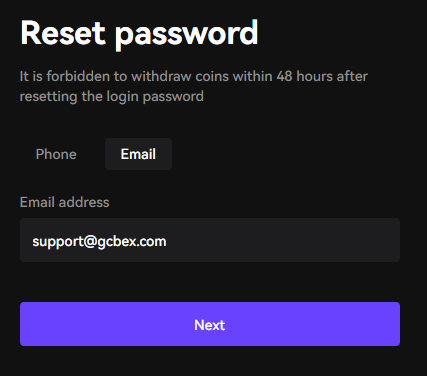
Forgot password screen
**Step 2: Enter Your Email or Phone Number**
* After selecting **"Forgot Password?"**, you will be prompted to enter your registered **email address** or **phone number**.
* Type it in and click **"Next."**
**Step 3: Check Your Email for a Reset Link**
* Check your email inbox (or spam/junk folder) for an email with the subject line, **"Retrieve the Password"**.
* Type the code sent in your e-mail into the Security Verification pop-up
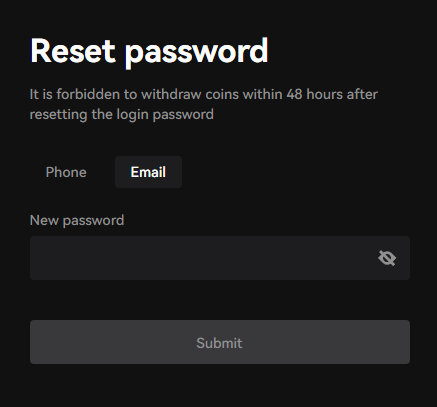
**Step 4: Create a New Password**
* You will be redirected where you can create a new password.
{% hint style="info" %}
Make sure to follow these **best practices** when creating your new password:
Use at least **8 characters**.
Include a mix of **uppercase and lowercase letters**, **numbers**, and **symbols**.
Avoid using easily guessed information like your name or common words.
{% endhint %}
**Step 5: Save Your New Password**
* Click **"Submit"** to finalize your new password.
* You should see a confirmation message that your password has been successfully updated.
**Step 6: Log In with Your New Password**
* Go back to the **login page** and enter your **email** or **username** with your new password.
* Click **"Login"** to access your account.
For more information please contact: .